iOS 18.1 Features: Everything New in iOS 18.1
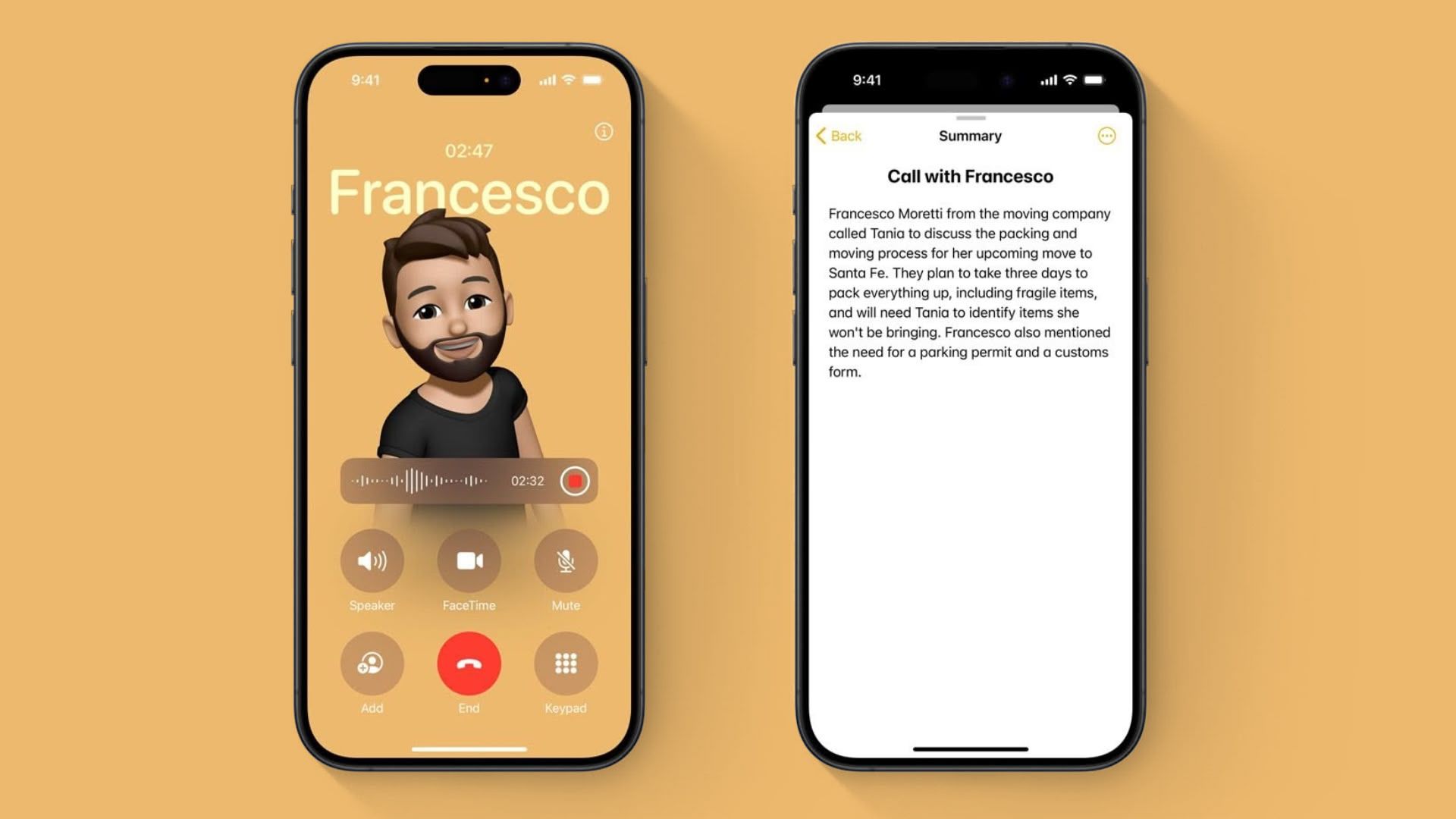
 iOS 18.1 is the first major update to iOS 18, and it brings a slew of new features including Apple Intelligence, phone call recording, and more, plus bug fixes. This guide highlights everything that's new in iOS 18.1. Apple Intelligence iOS 18.1 includes the first Apple Intelligence features for the iPhone 15 Pro models and the iPhone 16 lineup. It will take some time for Apple to roll out all of the Apple Intelligence capabilities, but a handful are available now. Writing Tools - Writing Tools lets you proofread, summarize, and rewrite text throughout the operating system. Siri - Siri has a new look, offers Apple device product knowledge, there's a Type to Siri feature, and Siri is able to maintain contexts between requests and understand when you stumble over your words. Smart Replies - In Mail and Messages, Apple can suggest replies to incoming messages. Summaries - Apple Intelligence can summarize email messages and notifications so you can see what's important at a glance. You can also get summaries of transcriptions in the Notes app, and websites in Safari. Photos - Memory Maker lets you create custom slideshows with just a description, natural language search is supported, and there's a Clean Up feature for removing unwanted objects from images. Focus - A Reduce Interruptions Focus Mode only shows you important notifications while filtering out everything else. Phone App iOS 18.1 supports recording your phone calls and getting transcriptions from the calls. Tapping on the upper left hand record button after placing a call initiates a recording, and all participants are notified that the call is being recorded. Calls are saved to the Notes app, and the Notes app is able to generate a transcription. Camera Spatial photo capture has been added to the iPhone 15 Pro and iPhone 15 Pro Max, and it joins the existing spatial video capture feature in a new Spatial camera mode. Spatial photo capture has been an iPhone 16 feature since launch. For iPhone 16 models, Camera Control now has an option to swap over to the front-facing TrueDepth camera with press and swipe gestures. If you hold down the Camera Control button with a light press, you will also now see a bar underneath the adjustment options. AirPods Pro 2 If you have AirPods Pro 2, iOS 18.1 adds a new set of Hearing Health features. You can do a built-in hearing test, identifying tones to check for hearing loss. Should hearing loss be detected, there is an option to use the AirPods Pro 2 as a hearing aid to boost conversations and other sounds around you. Apple also has an option to tweak music, videos, and calls based on your hearing test (if loss is detected), and there is a hearing protection feature for all users that minimizes exposure to loud environmental noises across all listening modes. Control Center There are new connectivity controls in Control Center for Satellite and AirDrop, allowing these buttons to be added to Control Center individually. Previously, the toggles were only available in the all-in-one connectivity control. Apple has also added new Measure and Level controls to the Control Center. Measure opens up the Measure app, while Level opens up the Measure app to the included Level feature. Apple Music Apple Music now has an option to share Apple Music songs directly on TikTok. To do so, tap on Share Song and then choose TikTok from the list of apps. RCS Business Messaging You can text with businesses that use Apple's Business Messaging feature over RCS. Wallet App In the Wallet app, if you have an Apple Card and your Daily Cash goes to a savings account, you'll no longer see the savings account balance on the main Apple Card screen. Instead, you can tap on the savings button to get your current account balance. App Store App Store search now supports natural language to make it easier to find exactly what you're looking for. Game Center You can send Game Center friend invites directly from the Contacts app and Friends Suggestions, with receivers able to see the invites in their inbox in Settings. Bug Fixes There are several bug fixes in iOS 18.1. Unplayed Podcasts episodes will no longer be marked as played. Videos recorded at 4K 60 fps and viewed in the Photos app will no longer stutter when scrubbing through the video. A bug that could cause digital car keys not to start or unlock a vehicle with passive unlocking after restoring from a backup or transferring from another iPhone has been fixed. iPhone 16 and iPhone 16 models should no longer unexpectedly restart. Security Updates iOS 18.1 addresses over 20 security vulnerabilities, which means it's a good idea to update as soon as you can. A full list of the vulnerabilities fixed can be found on Apple's website, but it includes updates for image processing, Safari downloads, Safari private browsing, Shortcuts, Siri and Spotlight. Read More For more detail on the Apple Intelligence features in iOS 18.1, we have a dedicated guide. Our iOS 18 roundup has a list of all of the features in the iOS 18 update.Related Roundups: iOS 18, iPadOS 18Related Forums: iOS 18, iPadOS 18This article, "iOS 18.1 Features: Everything New in iOS 18.1" first appeared on MacRumors.comDiscuss this article in our forums
iOS 18.1 is the first major update to iOS 18, and it brings a slew of new features including Apple Intelligence, phone call recording, and more, plus bug fixes. This guide highlights everything that's new in iOS 18.1. Apple Intelligence iOS 18.1 includes the first Apple Intelligence features for the iPhone 15 Pro models and the iPhone 16 lineup. It will take some time for Apple to roll out all of the Apple Intelligence capabilities, but a handful are available now. Writing Tools - Writing Tools lets you proofread, summarize, and rewrite text throughout the operating system. Siri - Siri has a new look, offers Apple device product knowledge, there's a Type to Siri feature, and Siri is able to maintain contexts between requests and understand when you stumble over your words. Smart Replies - In Mail and Messages, Apple can suggest replies to incoming messages. Summaries - Apple Intelligence can summarize email messages and notifications so you can see what's important at a glance. You can also get summaries of transcriptions in the Notes app, and websites in Safari. Photos - Memory Maker lets you create custom slideshows with just a description, natural language search is supported, and there's a Clean Up feature for removing unwanted objects from images. Focus - A Reduce Interruptions Focus Mode only shows you important notifications while filtering out everything else. Phone App iOS 18.1 supports recording your phone calls and getting transcriptions from the calls. Tapping on the upper left hand record button after placing a call initiates a recording, and all participants are notified that the call is being recorded. Calls are saved to the Notes app, and the Notes app is able to generate a transcription. Camera Spatial photo capture has been added to the iPhone 15 Pro and iPhone 15 Pro Max, and it joins the existing spatial video capture feature in a new Spatial camera mode. Spatial photo capture has been an iPhone 16 feature since launch. For iPhone 16 models, Camera Control now has an option to swap over to the front-facing TrueDepth camera with press and swipe gestures. If you hold down the Camera Control button with a light press, you will also now see a bar underneath the adjustment options. AirPods Pro 2 If you have AirPods Pro 2, iOS 18.1 adds a new set of Hearing Health features. You can do a built-in hearing test, identifying tones to check for hearing loss. Should hearing loss be detected, there is an option to use the AirPods Pro 2 as a hearing aid to boost conversations and other sounds around you. Apple also has an option to tweak music, videos, and calls based on your hearing test (if loss is detected), and there is a hearing protection feature for all users that minimizes exposure to loud environmental noises across all listening modes. Control Center There are new connectivity controls in Control Center for Satellite and AirDrop, allowing these buttons to be added to Control Center individually. Previously, the toggles were only available in the all-in-one connectivity control. Apple has also added new Measure and Level controls to the Control Center. Measure opens up the Measure app, while Level opens up the Measure app to the included Level feature. Apple Music Apple Music now has an option to share Apple Music songs directly on TikTok. To do so, tap on Share Song and then choose TikTok from the list of apps. RCS Business Messaging You can text with businesses that use Apple's Business Messaging feature over RCS. Wallet App In the Wallet app, if you have an Apple Card and your Daily Cash goes to a savings account, you'll no longer see the savings account balance on the main Apple Card screen. Instead, you can tap on the savings button to get your current account balance. App Store App Store search now supports natural language to make it easier to find exactly what you're looking for. Game Center You can send Game Center friend invites directly from the Contacts app and Friends Suggestions, with receivers able to see the invites in their inbox in Settings. Bug Fixes There are several bug fixes in iOS 18.1. Unplayed Podcasts episodes will no longer be marked as played. Videos recorded at 4K 60 fps and viewed in the Photos app will no longer stutter when scrubbing through the video. A bug that could cause digital car keys not to start or unlock a vehicle with passive unlocking after restoring from a backup or transferring from another iPhone has been fixed. iPhone 16 and iPhone 16 models should no longer unexpectedly restart. Security Updates iOS 18.1 addresses over 20 security vulnerabilities, which means it's a good idea to update as soon as you can. A full list of the vulnerabilities fixed can be found on Apple's website, but it includes updates for image processing, Safari downloads, Safari private browsing, Shortcuts, Siri and Spotlight. Read More For more detail on the Apple Intelligence features in iOS 18.1, we have a dedicated guide. Our iOS 18 roundup has a list of all of the features in the iOS 18 update.Related Roundups: iOS 18, iPadOS 18Related Forums: iOS 18, iPadOS 18This article, "iOS 18.1 Features: Everything New in iOS 18.1" first appeared on MacRumors.comDiscuss this article in our forums
MacRumors
iOS 18.1 Features: Everything New in iOS 18.1
iOS 18.1 is the first major update to iOS 18, and it brings a slew of new features including Apple Intelligence, phone call recording, and more, pl...
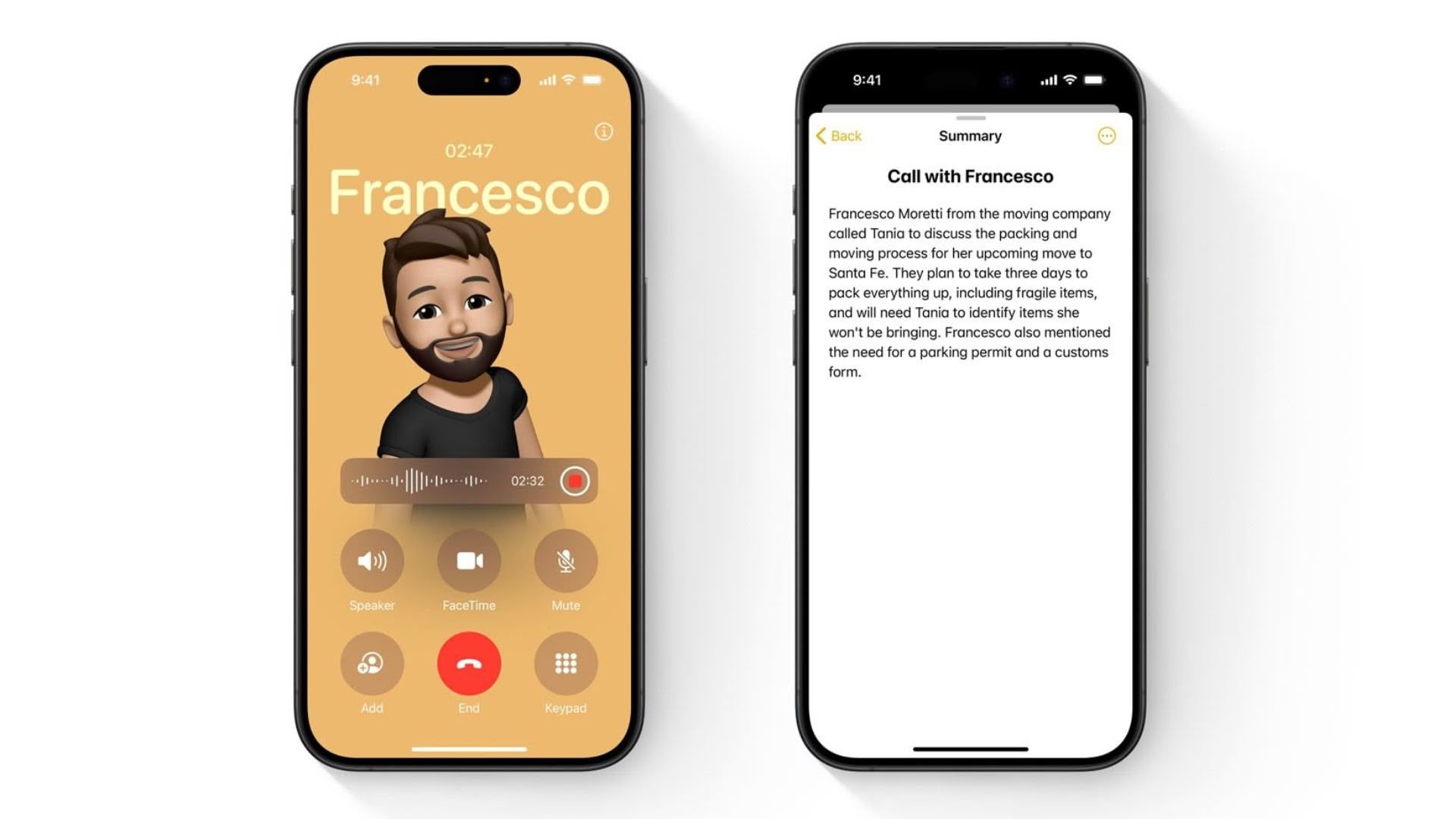 From business meetings to family memories, there are countless reasons to record a phone call, but until now, iPhone users have had to rely on third-party apps or complex workarounds. That changes on October 28 with the release of iOS 18.1, which introduces native call recording and transcription powered by Apple Intelligence. Apple's new Phone app feature not only records conversations but automatically creates searchable transcripts and AI-generated summaries, all while maintaining Apple's commitment to privacy and transparency. When you start recording, all participants automatically hear an announcement, ensuring everyone knows they're being recorded. A visible indicator also remains on screen throughout the call for as long as the recording continues. To further protect user privacy, all recordings are stored locally in the Notes app with end-to-end encryption, and the new Apple Intelligence-powered transcription happens entirely on your device, meaning conversations never leave your iPhone. Here's how to make your first phone call recording. Recording a Phone Call Start or answer a phone call. Tap the record button (the waveform icon) in the top-left corner of the call screen. An automated voice will notify all participants that recording has begun. The recording will automatically save to the Notes app when the call ends or when you stop the recording. Finding and Managing Phone Call Recordings Once saved, recordings appear in the Notes app as audio files with attached transcripts. Tap any recording to access a range of options: You can play back the audio, read the full transcript, view an AI-generated summary of the conversation, or share and delete recordings as needed. Legal Considerations While iOS 18.1 makes recording calls easier than ever, it's important to understand your legal obligations. Although Apple's automated announcement helps ensure transparency, you should familiarize yourself with local recording laws. Regardless, it's always best to get explicit verbal consent before the start of any recorded conversation. Phone call recording and transcription features will be available on compatible iPhone models when iOS 18.1 is released on Monday, October 28.This article, "iOS 18.1: How to Record and Transcribe Phone Calls" first appeared on MacRumors.comDiscuss this article in our forums