
What is Synballo and how it works.
Searching for characters is an integral part of tasks involving computer, most people are using search engines that are now part of our daily life and one of the important tools for billions of internet users worldwide. Sometimes 256 ASCII characters are not enough and you have to look in one of many Unicode Standards, it’s not that complicated just about 5 steps: open, search, select, copy and paste. Of course, you can remember a set of alt-codes instead, but can you remember more than a million alt-codes? This problem is not new, it was solved a long time ago, but to this day different operating systems are equipped with rather primitive applications for solving these fundamental tasks. In Windows you have emoji keyboard Win logo key + . (period), much more convenient, but limited to emojis. Therefore, in 2020, I decided to develop a tool for myself and later named it Synballo.
Synballo — is an extension for web browsers that provides the most rich and convenient toolkit for working with symbols.
In this article I am going to share my best practices in order to give an examples of how you can use Synballo to save time and make your communication easier.
First of all, as you already know Synballo is not limited to emojis alone. However, it seemed to me too big a task to include in it more than a million characters. I started with about 7,000 and over the last two years expanded this list to include 8,149 symbols in last version 0.6.4. I made these sets solely based on users preferences. Search function in Synballo is compatible with JavaScript regular expression patterns. You can find full documentation online. I’ll just show a few illustrative examples.
Show all
.*
 Starts with
^man — for all symbols that starts with “man”
Starts with
^man — for all symbols that starts with “man”
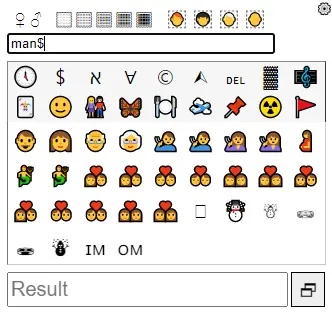
 Ends with
man$ — for symbols that ends with “man”
Ends with
man$ — for symbols that ends with “man”
 Escaping characters
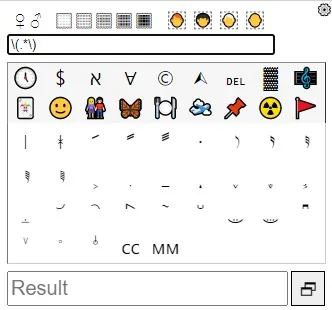
If you want to search for special characters you have to escape them with a backslash first. For example, when you want to find all the symbols with round brackets in description you should do like so: \(.*\)
Escaping characters
If you want to search for special characters you have to escape them with a backslash first. For example, when you want to find all the symbols with round brackets in description you should do like so: \(.*\)
 To escape asterisk just type: \*
Groups and ranges
To search the symbols that starts with a letter from “a” to “c” or “d” to “f”,
type: ^[a-c|d-f]
To escape asterisk just type: \*
Groups and ranges
To search the symbols that starts with a letter from “a” to “c” or “d” to “f”,
type: ^[a-c|d-f]
 For “hand” without letter “s” type: hand[^s]
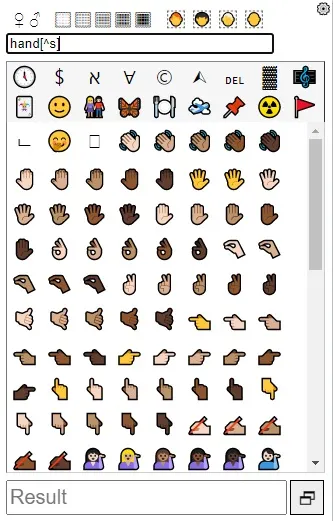 in the example above ^ works as exclusion, not a starts with
Quantifiers
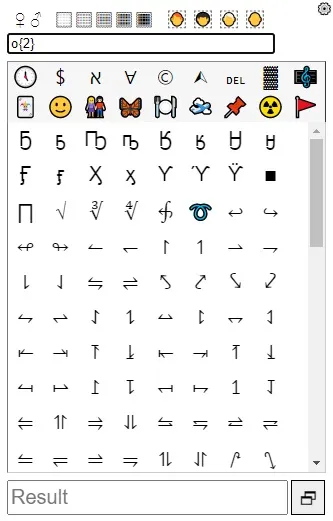
Let’s say you want to find symbols with a double o’s,
like so: o{2}
in the example above ^ works as exclusion, not a starts with
Quantifiers
Let’s say you want to find symbols with a double o’s,
like so: o{2}
 you can type instead: oo (which gives the exact same result)
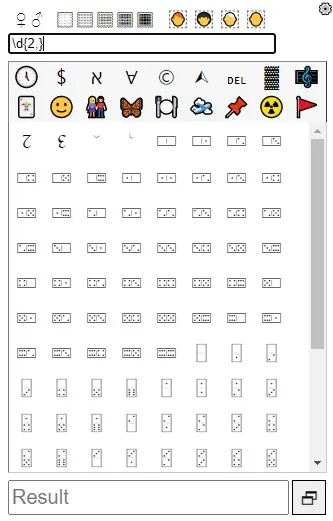
But to search for equal or more than two numbers in a row, you do need quantifiers,
type: \d{2,}
you can type instead: oo (which gives the exact same result)
But to search for equal or more than two numbers in a row, you do need quantifiers,
type: \d{2,}
 Assertions
There are 4 types of assertions: look ahead , look behind, negative look ahead and negative look behind
look ahead: man(?=.woman) , matches “man” only if “man” followed by “woman” with any single character in-between
Assertions
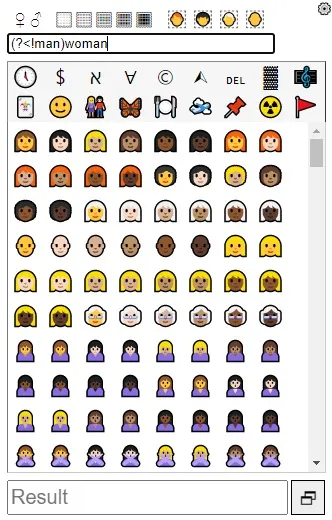
There are 4 types of assertions: look ahead , look behind, negative look ahead and negative look behind
look ahead: man(?=.woman) , matches “man” only if “man” followed by “woman” with any single character in-between
 look behind: (?<=woman).man , matches “woman” only if “woman” followed by “man” with any single character in-between
 negative look ahead: woman(?!man) , matches “woman” only if “woman” not followed by “man”
 negative look behind: (?<!man)woman
 So if you want to search let’s say a “raised” followed by “hand”
type: raised(=?.*hand) , matches “raised” only if “raised” followed by “hand” with a set of any characters in-between
So if you want to search let’s say a “raised” followed by “hand”
type: raised(=?.*hand) , matches “raised” only if “raised” followed by “hand” with a set of any characters in-between
 I will share some more examples later. Stay tuned.
Starts with
^man — for all symbols that starts with “man”
Ends with
man$ — for symbols that ends with “man”
Escaping characters
If you want to search for special characters you have to escape them with a backslash first. For example, when you want to find all the symbols with round brackets in description you should do like so: \(.*\)
To escape asterisk just type: \*
Groups and ranges
To search the symbols that starts with a letter from “a” to “c” or “d” to “f”,
type: ^[a-c|d-f]
For “hand” without letter “s” type: hand[^s]
in the example above ^ works as exclusion, not a starts with
Quantifiers
Let’s say you want to find symbols with a double o’s,
like so: o{2}
you can type instead: oo (which gives the exact same result)
But to search for equal or more than two numbers in a row, you do need quantifiers,
type: \d{2,}
Assertions
There are 4 types of assertions: look ahead , look behind, negative look ahead and negative look behind
look ahead: man(?=.woman) , matches “man” only if “man” followed by “woman” with any single character in-between
look behind: (?<=woman).man , matches “woman” only if “woman” followed by “man” with any single character in-between
negative look ahead: woman(?!man) , matches “woman” only if “woman” not followed by “man”
negative look behind: (?<!man)woman
So if you want to search let’s say a “raised” followed by “hand”
type: raised(=?.*hand) , matches “raised” only if “raised” followed by “hand” with a set of any characters in-between
I will share some more examples later. Stay tuned.